Monday, April 6, 2015

GNU/Linux Distribution Timeline

GNU/Linux Distribution Timeline

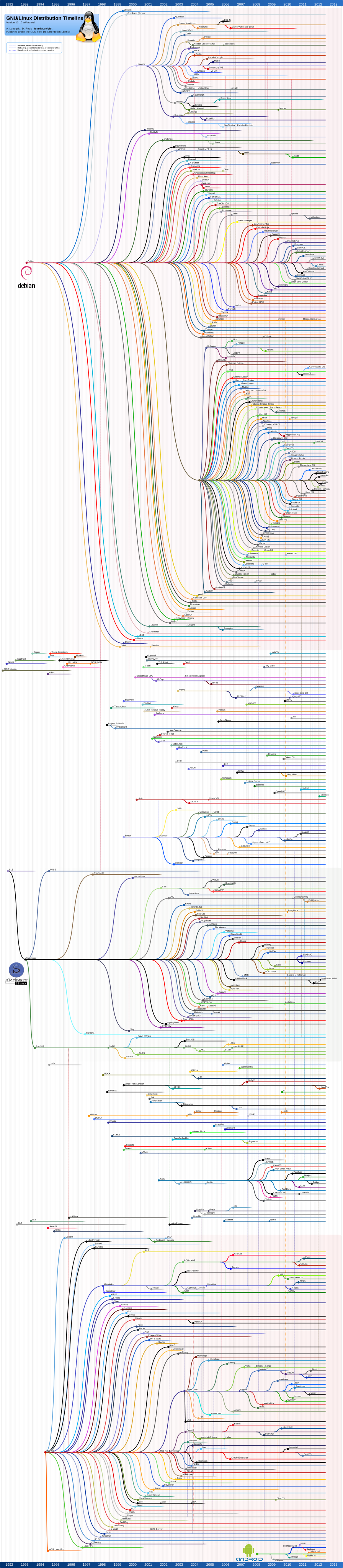
Ladies and gentlemen here is GNU/Linux distribution timeline. Look at my favorite Debian > Ubuntu  branch :) so many distributions under that. Feeling great :)

Full Screen Image

Click to see full screen

Click here to see Full Screen


Thursday, April 2, 2015

Error: Apache shutdown unexpectedly [SOLVED]

Hello Guys,

So, I have been installing XAMPP on my office windows 8 machine and it didn't worked in first attempt. I knew it something is wrong with ports/config settings.
When I clicked on 'Start' button of XAMPP control panel, it showed me below error.

Error: Apache shutdown unexpectedly.
This may be due to a blocked port, missing dependencies, 
improper privileges, a crash, or a shutdown by another method.
Press the Logs button to view error logs and check
the Windows Event Viewer for more clues
If you need more help, copy and post this
entire log window on the forums

Problem detected!
Port 80 in use by "Unable to open process" with PID 4!
Apache WILL NOT start without the configured ports free!
You need to uninstall/disable/reconfigure the blocking application

or reconfigure Apache and the Control Panel to listen on a different port

Please follow the steps to solve this problem:

1) From XAMPP control panel click on Apache 'config' button. 

2) Now, httpd.conf file will be opened in text editor. 

3) Find (Control + F) Listen 80 replace it to Listen 8080

4) Again find ServerName localhost:80 replace it to ServerName localhost:8080

5) Now save the file and go to XAMPP control panel and click on 'Start' button. 

6) Now go to http://localhost:8080 you should see XAMPP index page. 
    Congratulations: You have successfully installed XAMPP on your system! :) 


So how did it worked ?

Your port 80 was busy and we are now using unique port i.e. 8080
So remember whenever you are going to access the localhost you will be using it like http://localhost:8080 same for phpmyadmin http://localhost:8080/phpmyadmin/

If you insist with default port 80 then you need to look in your computer and find which installed software is using port 80. 

e.g. skype uses default port 80. 
To clear that port, open skype then go to Tools > Options > Advanced > Connection > and in that uncheck 'Use port 80 and 443 for additional incoming connections' option. Then save it and restart the skype. Now your skype will use another unique port. 
Thats how you can clear port 80. 


Helpful ? comments please :)


Tuesday, September 16, 2014

Linux Commands Cheat Sheet

Hi Guys,

I have an idea! I have created most useful and important linux commands cheat sheet.

To make it more easy, I have created a short URL. So now you can access this cheat sheet file with simple URL.


Linux command cheat sheet
CopyLeft Linux Command Cheat Sheet

Note : Click on above image to see full size.


Thanks for reading!
Enjoy and be open
Amit Naik

Monday, September 15, 2014

Freedom of Operating System

Windows! windows everywhere!

Just open the window and see the magical world of linux.


That's right! I still remember when I was in my college, I used to wonder that how these operating systems so called as "Linux" are powerful, faster, safer and yet free!! But now after so many years of exploration and usage I can bet that these are the most faster, safer and free (truly free..where you can share its source code with your friend, you can share the bootable disc with your friend).

Enough said, Lets look at some of the major Linux distributions.

1) Linux Mint
Download page: http://www.linuxmint.com/download.php


2) Ubuntu
Download page: http://www.ubuntu.com/download/desktop/


3) Debain
Download page: https://www.debian.org/CD/http-ftp/


4) Fedora
Download page: http://fedoraproject.org/en/get-fedora


5) Open Suse
Download page: http://software.opensuse.org/


6) Arch Linux
Download page: https://www.archlinux.org/download/


7) Mageia
Download page: https://www.mageia.org/en/downloads/


8) Cent OS
Download page: http://www.centos.org/download/


9) PCLinuxOS
Download page: http://pclinuxos.com/?page_id=10


10) FreeBSD
Download page: https://www.freebsd.org/where.html


So what are you waiting for. Just choose your favorite Linux OS and download it today!
Share your experience with the community.

Thanks for reading.
Enjoy and be open!
Amit Naik


Thursday, October 10, 2013

How to podcast feeds using FeedBurner

Hey Guys,

Now I have my very own podcast powered by FeedBurner! You can also burn feeds of your blog or for your website! Process is very simple...

1) Just go to http://feedburner.google.com/
2) Sign in with your google account and then enter your blog URL at "Burn a feed right this instant"
3) Make sure you have checked I am a podcaster! option and then hit Next.
4) Next step is 'Identify Feed Source', just keep the selected option and hit Next.
5) Now final step is 'Welcome! Let us burn a feed for you'. Now after this step it will show you your FeedBurner URL. Just save that URL and show it on your blog.

If you are using FeedBurner then people can subscribe to your feeds.
Other blogs or websites can easily import your posts.
The very important use of FeedBurner is analyze Feeds! You can simply track your feeds. Traffic to your feeds using its tracker. If you are logged in then just visist the admin dashboard.
FeedBurner was acquired by Google Inc. on June 2007. Now it is free of cost. :) 
FeedBurner is also available in plain XML format. e.g. My blog feeds in XML

Now here, you can do one trick ;) If you are using Firefox (greatest browser ever made) then just visit your XML FeedBurner URL. At the top you will see a dropdown and Subscribe Now button.
Here, just select Live Bookmarks option from dropdown! and hit Subscribe Now button. Now you will see subscribe bookmark popup. Just select your bookmark folder and save it.
Now you will get to see feeds directly in your Firefox's bookmarks menu bar. :) Simply Awesome!

E.g.


So here is my blog's FeedBurner URL :) http://feeds.feedburner.com/blogspot/WrQrB
Now you can subscribe to my feeds!

Thanks for reading,
Amit Naik

Wednesday, August 28, 2013

How to Install Ruby on Rails on Ubuntu [SOLVED]

Hello Everyone,

Yesterday I have installed the Ruby on Rails on my Ubuntu 12.04. It is really a fun! I think I should share it!

So following are the steps to install Ruby on Rails on Ubuntu!

1) When you are installing something you should always run the
sudo apt-get update 
This will make sure that we have all packages installed and up to date :)

2) After update you should install RVM ( Ruby Version Manager ) Now, RVM is really a cool unix-like software platform designed to manage multiple installations of Ruby on the same device. You can install RVM using CURL only. So very first, you have to make sure that CURL is installed on your ubuntu.
Just run below command to install CURL
sudo apt-get install curl

Now after CURL you can install RVM with below command
\curl -L https://get.rvm.io | bash -s stable


3) Now you have successfully installed Ruby Version Manager! Now lets install Ruby! But wait, before that have you checked the dependencies for RVM ?  You can check it with below command
rvm requirements
Just resolve the Dependencies :) It is really a painful procedure! but dependencies may vary from user to user! so you have to solve it on your own!

4) Now lets install Ruby! with below command
rvm install 1.9.3 

Now you have installed Ruby! Just tell your machine to use 1.9.3 as default with below command
rvm use 1.9.3 --default

After setting 1.9.3 as default lets get the Ruby gem. RVM now provides a 'rubygems' CLI command which allows you to change the rubygems version for the installed interpreter. In order to install the most recent RubyGems that RVM knows about you can do. Use below command to install 
rvm rubygems current

5) Now we have Ruby installed, all we need to install is Rails! and its dependencies through RubyGems
use below command to install Rails
gem install rails

6) Now finally after installing Rails! you can create your very own application skeleton and start the server!
E.g. rails new path/to/your/new/application
cd path/to/your/new/application
rails server

You are now running Ruby on Rails! :)
I hope it helped you :)


Thanks for reading!

Enjoy & be open
Amit Naik
Monday, August 26, 2013

Happy 22nd anniversary Linux! Celebrating 22 glorious years!

Hello Everyone,

Today is 22nd anniversary of Linux! On this occasion let me share the best video of  'The story of linux'. This is the power of Linux.


Lets celebrate this occasion by downloading your favorite Linux distribution!
There are many linux distributions available. If you want to choose one of them then please go here.


Top 3 are::
1) Linux Mint
2) Ubuntu
3) Debain


Thanks for reading.
Enjoy & Be Open,
Amit Naik